
2Do Android


For work, study, and everyday life











Tasks. Tamed.
Keep a grocery list, plan a trip, or manage a project with its own dates and details. Start with a task, then add the notes, steps, tags, and alerts you need.
2Do brings your lists, calendar events, and task details together on Android, with a focused layout on your phone and room for more on a tablet.
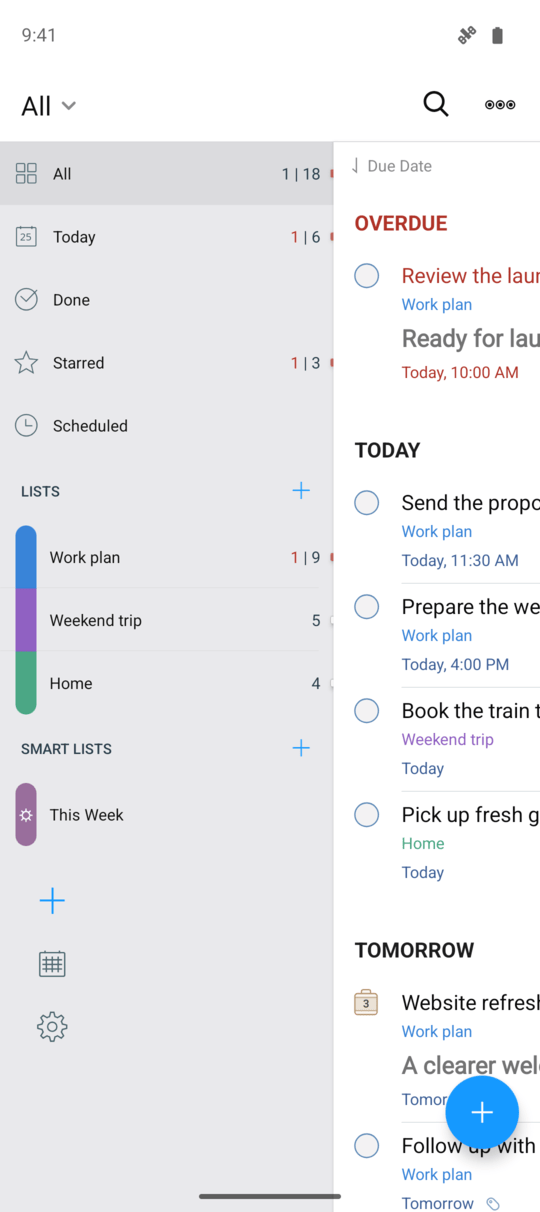
Move between your lists and tasks
Keep your tasks in view, then swipe to reach your lists or the Tags and Locations panel. Use the space for the part of your plan you are working on.
The add button stays close at hand. Capture a new task, then return to the list you were reviewing.
Your lists, tasks, and editor together
Use the extra room on your tablet to keep a task open beside its list. Swipe between panels to reach your lists, tags, and locations while you work.
Close the editor to see Recently accessed tasks, then tap one to open it again. The layout adjusts as you rotate your tablet or resize the app window.

Write the date as you think of it
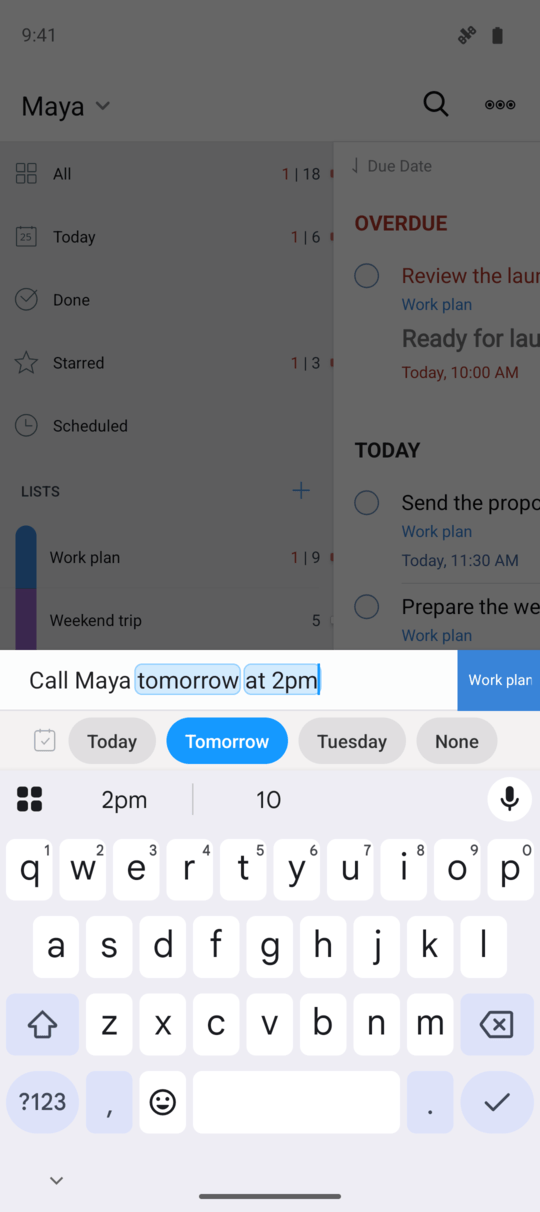
Type Call Maya tomorrow at 2pm and 2Do sets the due date and time. The words it recognizes are marked in the title, so you can check the details before saving.
Natural Language Input works in Quick Add and the task editor. It also recognizes start dates, repeats, alerts, priorities, tags, and other details in supported app languages.
Get an idea down while it is fresh
Add tasks in succession with Quick Add, choose their list, and carry on with your day. Open it inside 2Do or from the Quick Add tile in Android Quick Settings.
Choose a date or destination list while you type, then save and add the next task without leaving Quick Add. Open the full editor later when a task needs more detail.

Keep your devices up to date
Use iCloud to keep your tasks, projects, tags, notes, and attachments in sync with 2Do on Android, iPhone, iPad, and Mac.
Sign in with your Apple Account in the browser to connect Android to native iCloud sync. Use the same account in 2Do on your other devices. Sync is part of 2Do Pro.
Make plans together
Share a household grocery list, plan a trip, or work on a project together. Invite people through iCloud to view or edit a list in 2Do on Android, Mac, iPhone, and iPad.
Keep tasks, notes, attachments, and sections together, while each person chooses how to view the list. iCloud list sharing is part of 2Do Pro and requires a version of 2Do that supports sharing.
Break a long list into sections
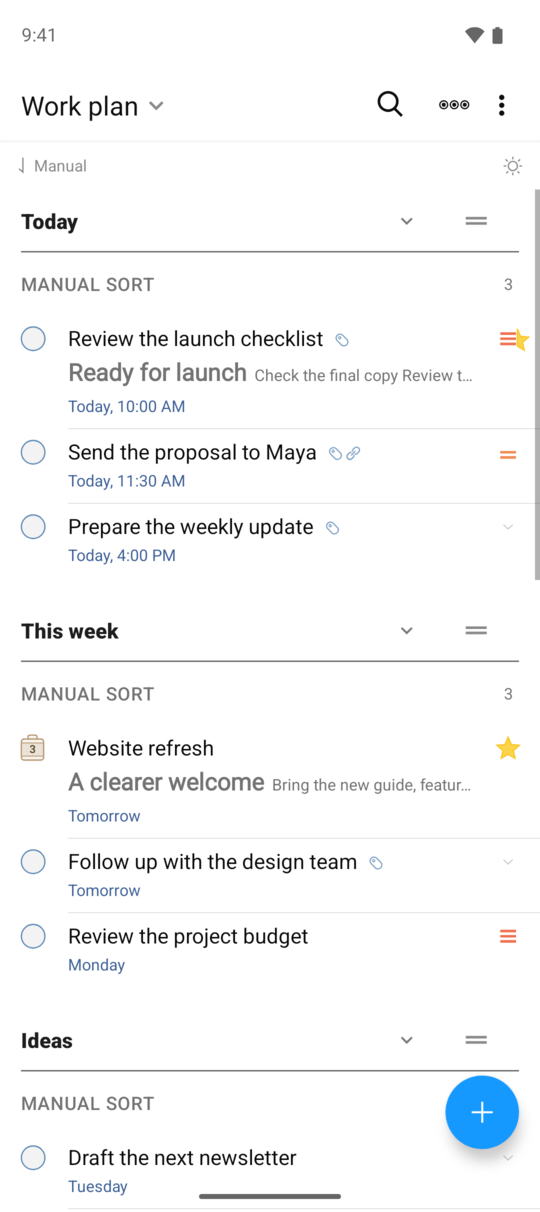
Keep a trip in one list, with sections for bookings, packing, and places to visit. Give each section a name and an optional description, then arrange the sections in the order you need.
Tasks within each section follow the list’s sort. Collapse a section to make room for the work you want to see, or move it to another list as your plans change.
Keep the details with the task
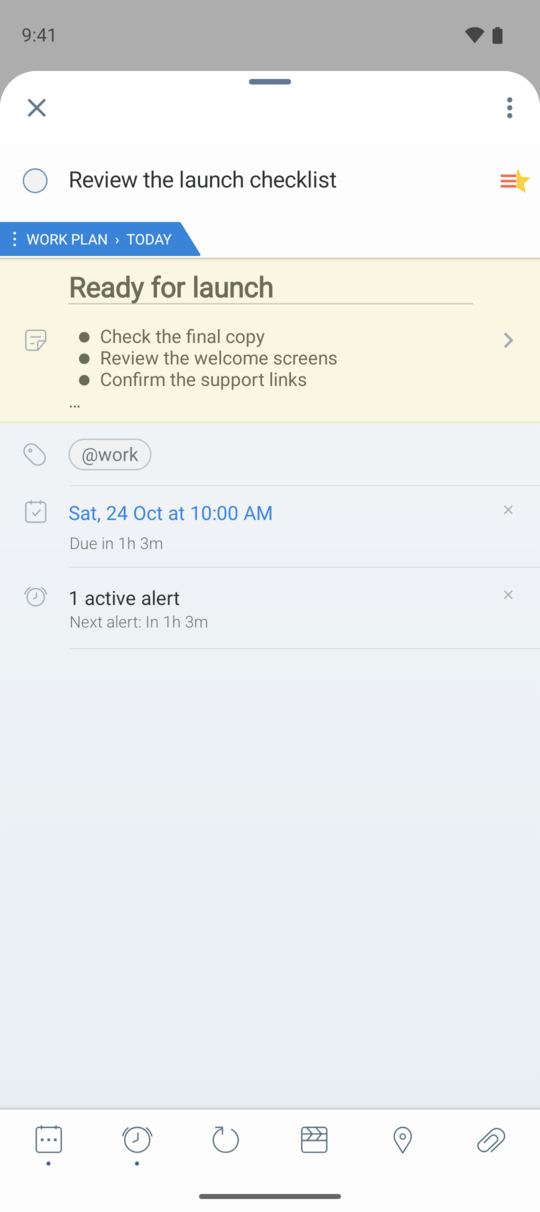
Add the due date for a deadline, a start date for when work can begin, and a duration for the time it needs. Keep notes, tags, alerts, locations, a photo, or an audio recording with the task.
The editor opens in a draggable sheet on your phone. On a wide tablet layout, it sits beside your tasks so you can review a list while editing.
Plan around the time you have
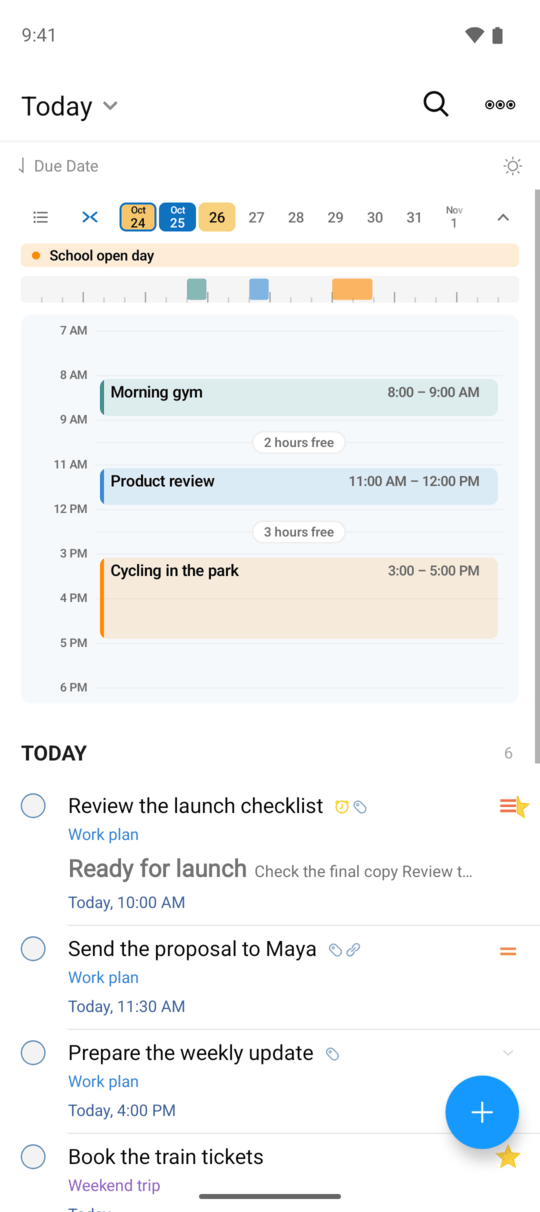
See appointments above your tasks, switch between an event list and a day timeline, and browse upcoming days. Dots or a heat map help you spot busy dates.
Add a task to your calendar to set aside time for it, then review and save the event in your calendar app. Calendar Events is part of 2Do Pro and uses calendars available on your Android device.
Keep daily routines at local time
With floating dates, a task set for 9:00 AM stays at 9:00 AM when you travel to another time zone. Floating dates keep everyday routines at the local time you chose.
Use start dates to keep future work out of your current view, due dates for deadlines, and durations to allow time before a task is due.
Find a task and go straight to it
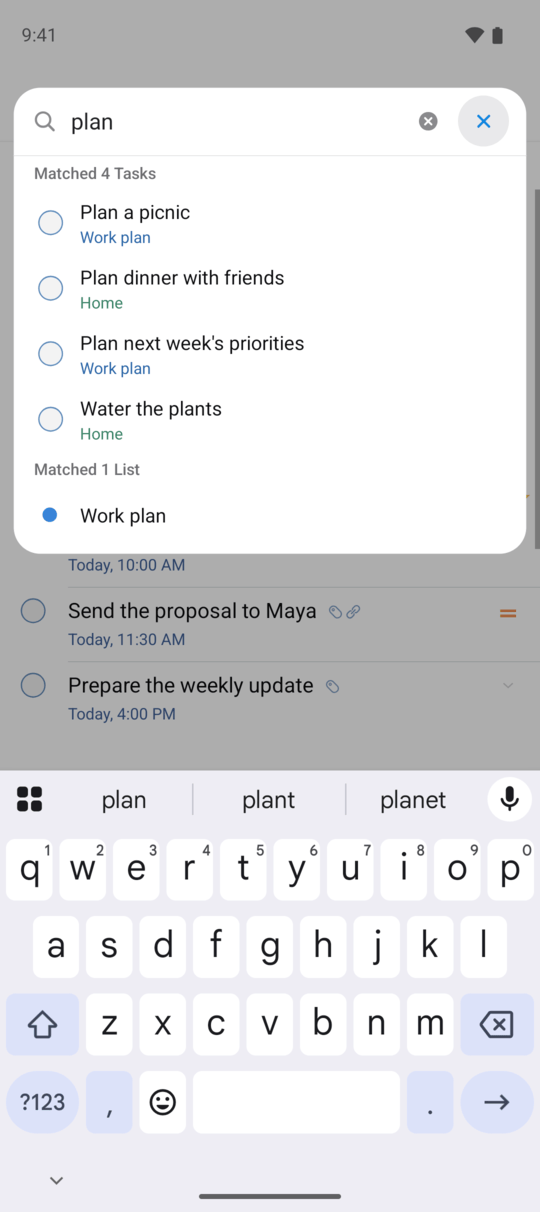
Find a task or list by name without browsing through your lists. Tap the list title, type part of a name, and choose a result.
With no search entered, Quick Open shows recently changed tasks and recently visited lists. Use it to return to work you were just reviewing.
Write more than a title
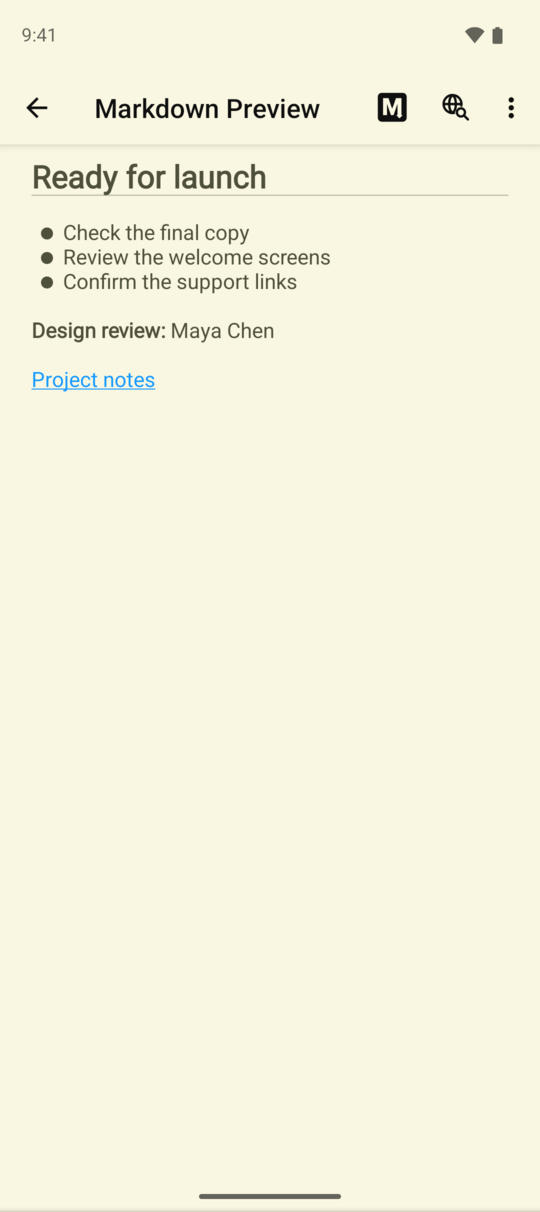
Keep meeting notes, a brief, or instructions with the task they belong to. Use Markdown for headings, emphasis, lists, and links, then preview the formatted note.
A short title keeps the task list easy to scan. Notes give you room for the details you will need when you come back to it. Markdown formatting is part of 2Do Pro.
Sort tasks the way you need them
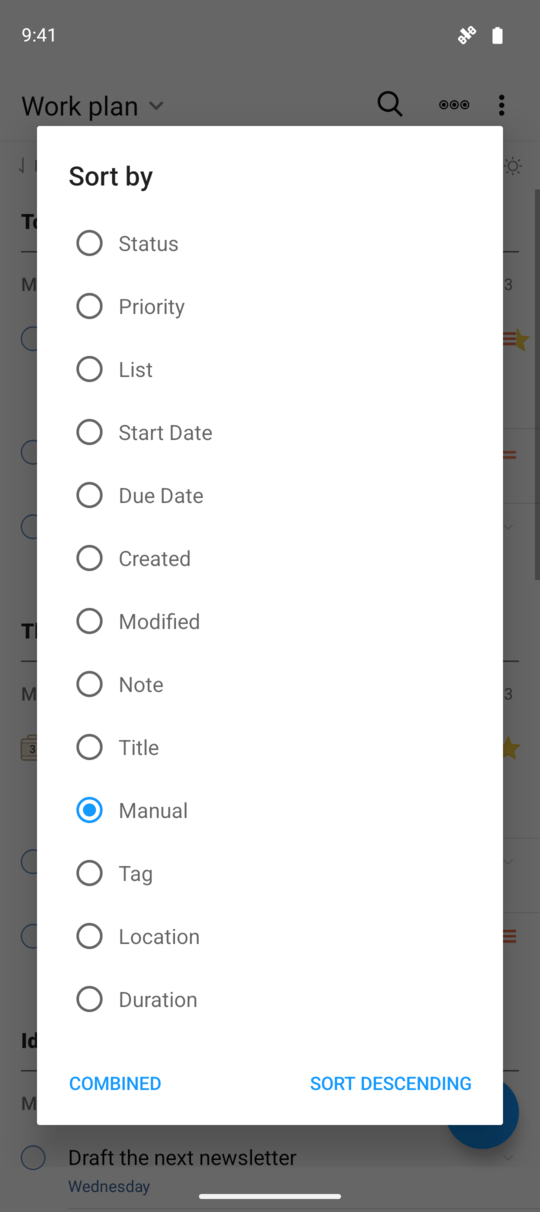
Review deadlines by due date, put high-priority work first, or group tasks by tag or location. Each list remembers its own sort, so your work list and your errands can use different views.
Choose Manual when you want to arrange tasks yourself. Change the sort direction or collapse a group to make room for the work you want to see.
Find work by context
Tag calls, errands, or work for a client, then use the Tags panel to narrow your current task view. Combine tags when more than one context matters.
Keep related tags in groups, and choose whether the panel shows all tags or only those used in the selected list.
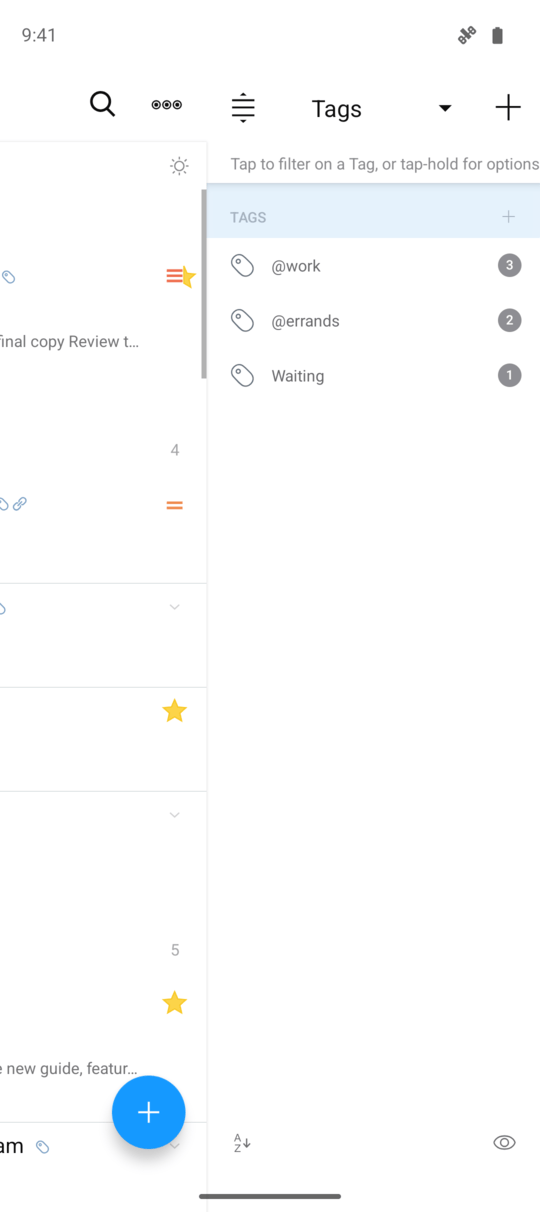
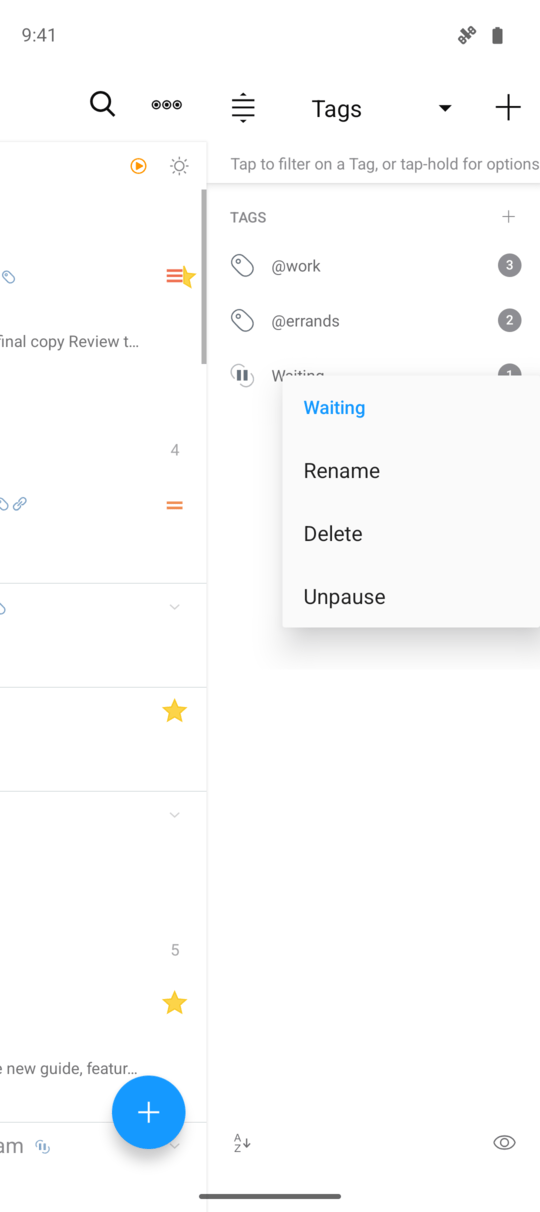
Set tasks aside until you are ready
Pause a Waiting tag while a reply is pending, or put a project on hold without changing its tasks. Dates, notes, and other details stay in place while those tasks leave your ordinary views.
Show paused tasks when you need to review them, or find them through search. Unpause the tag when you are ready to continue.
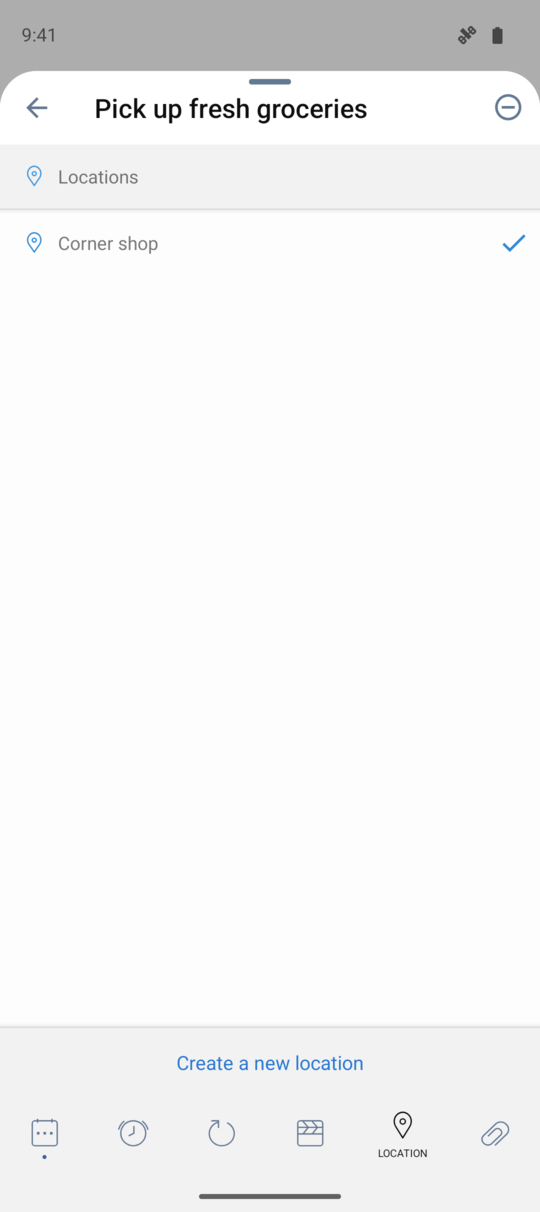
Remember what to do when you get there
Attach a place to a task, such as the shop for your groceries, then use saved locations to find errands you can do nearby.
Turn on proximity alerts for reminders after you arrive and remain near a saved place. These reminders require 2Do Pro and the appropriate Android location permissions.
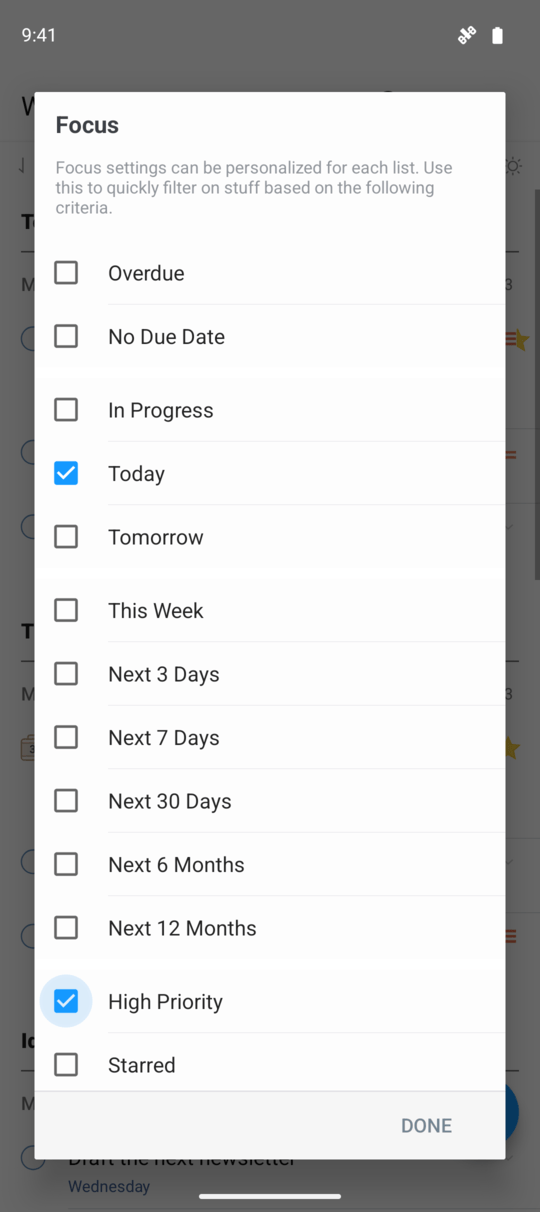
Choose what matters right now
Use Focus to narrow a list to the work you want to see now. Choose conditions such as overdue, due today, high priority, or starred, then switch the filter on or off with a tap.
Each list keeps its own Focus settings. A work list can focus on this week while your errands list focuses on today.
Find a task, then save a useful view
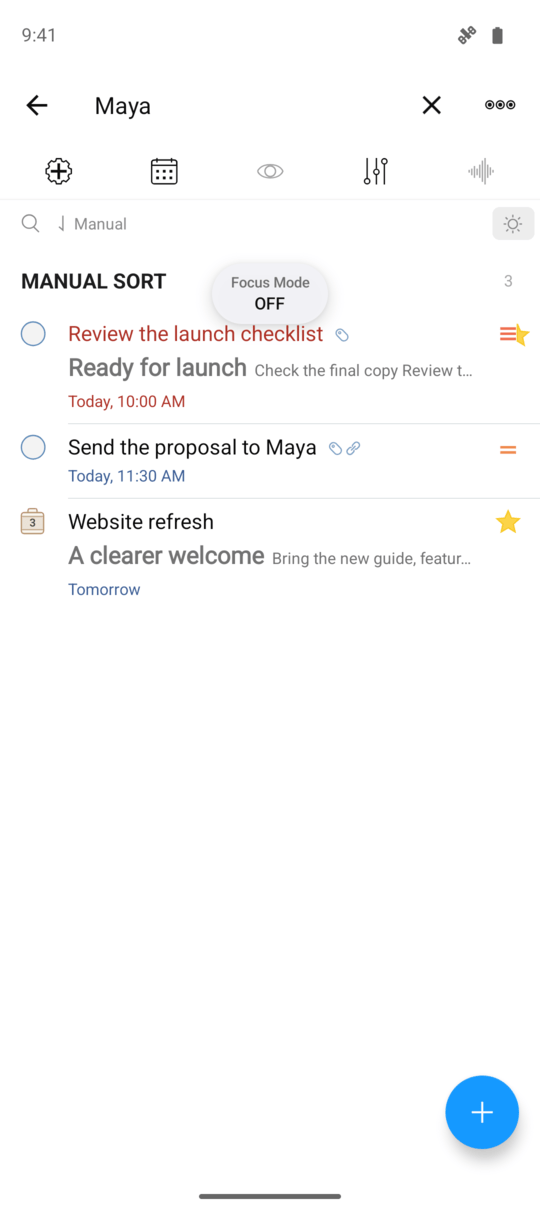
Search titles, notes, tags, dates, and other task details. Use presets and date ranges to narrow the results, or try sounds-like matching when you are unsure of a spelling.
Save a search as a Smart List for a weekly review, project follow-ups, or upcoming deadlines. Matching tasks appear there while staying in their original lists.
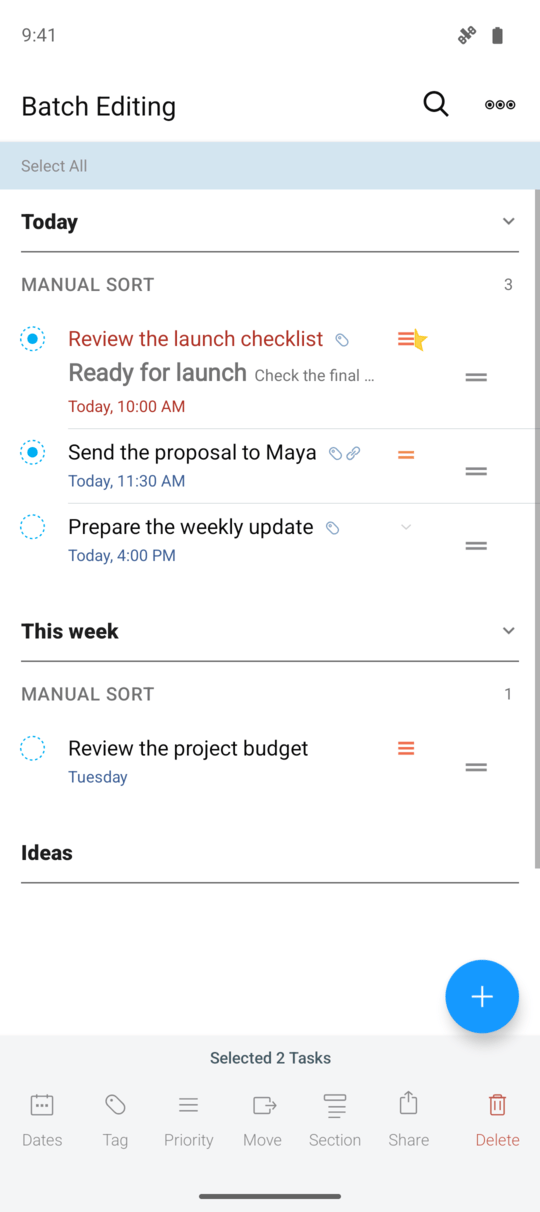
Update several tasks together
Move Friday’s tasks to Monday, tag a group of errands, or change several priorities together. Select the tasks once, then apply the change to the selection.
Batch editing works in regular lists, Smart Lists, Today, and search results, so you can organize related tasks from several lists in one place.
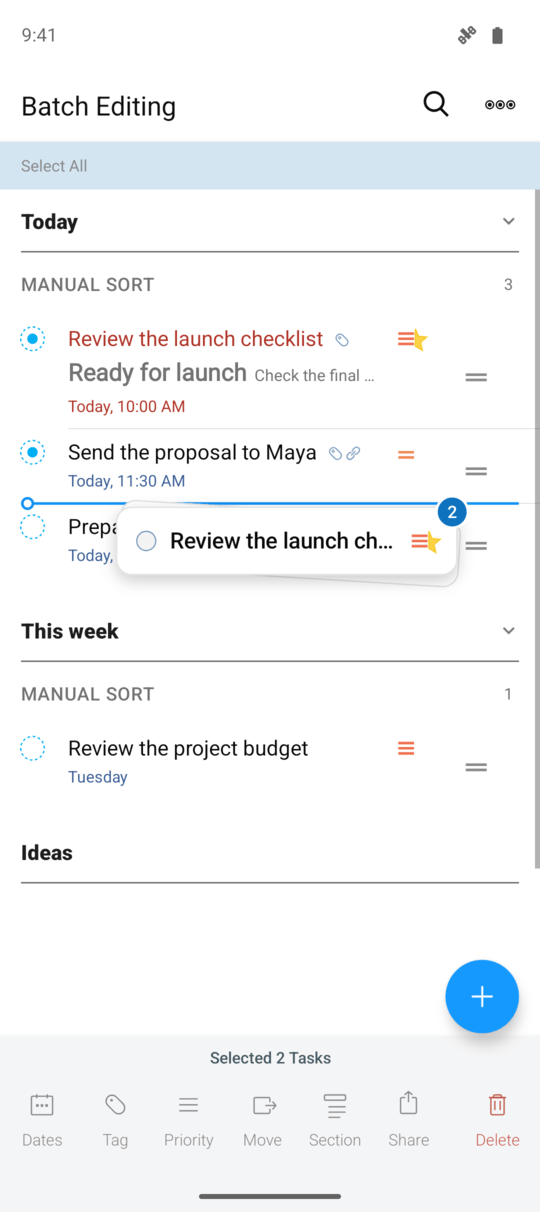
Move tasks where you need them
Drag selected tasks onto another list or section to reorganize your plans. With Manual sorting, use the insertion line to put them in the order you want.
Select several tasks first to move them together. Keep a project’s next steps together as you arrange the rest of your work.
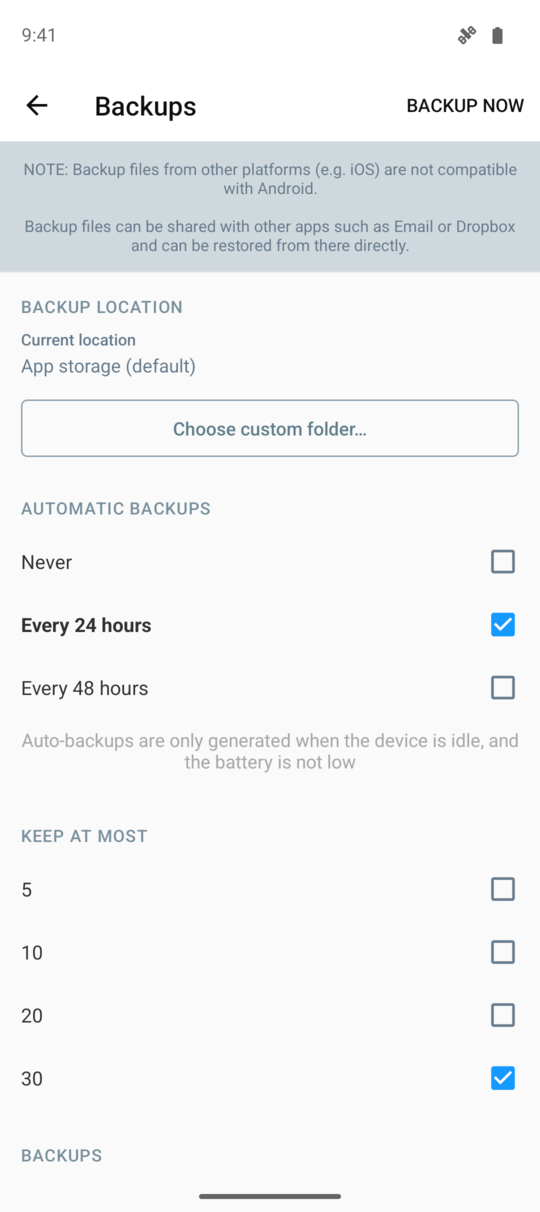
Keep a separate copy of your tasks
Set up automatic backups, choose how many copies to keep, or make one before a larger change. Share a backup or choose a folder outside app storage to keep a separate copy.
Restore your Android task database and saved attachments from a backup when needed. Backups are part of 2Do Pro; the guide explains what a restore replaces.
Keep a useful list in view
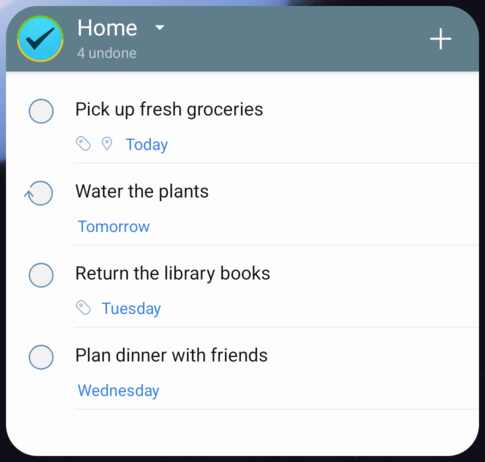
Put Today, your shopping list, or another list on your Android home screen. Open a task, mark it complete, or add a new one from the widget.
Resize the list widget to suit your home screen, or use the counter widget when you only need the number of unfinished tasks.
Choose how much each task shows
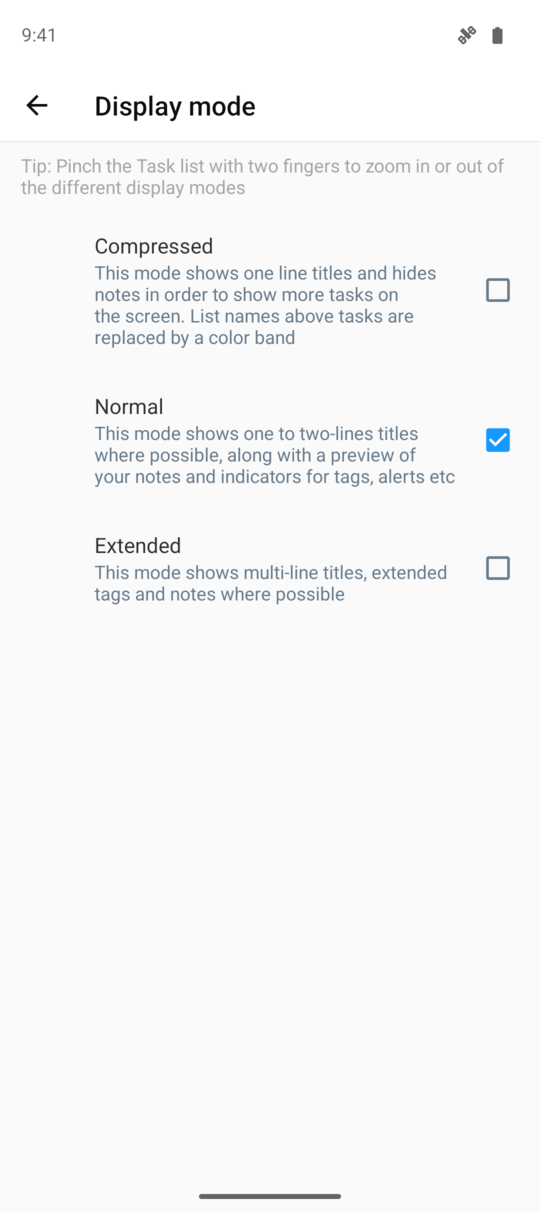
Pinch the task list to fit more rows on screen or show more detail. Compressed, Normal, and Extended modes give you different amounts of room for titles, notes, and tags.
Choose separate themes for Android’s Light and Dark appearances, or use the same theme for both. Keep the colors and task detail that suit the way you work.
Control access to private lists
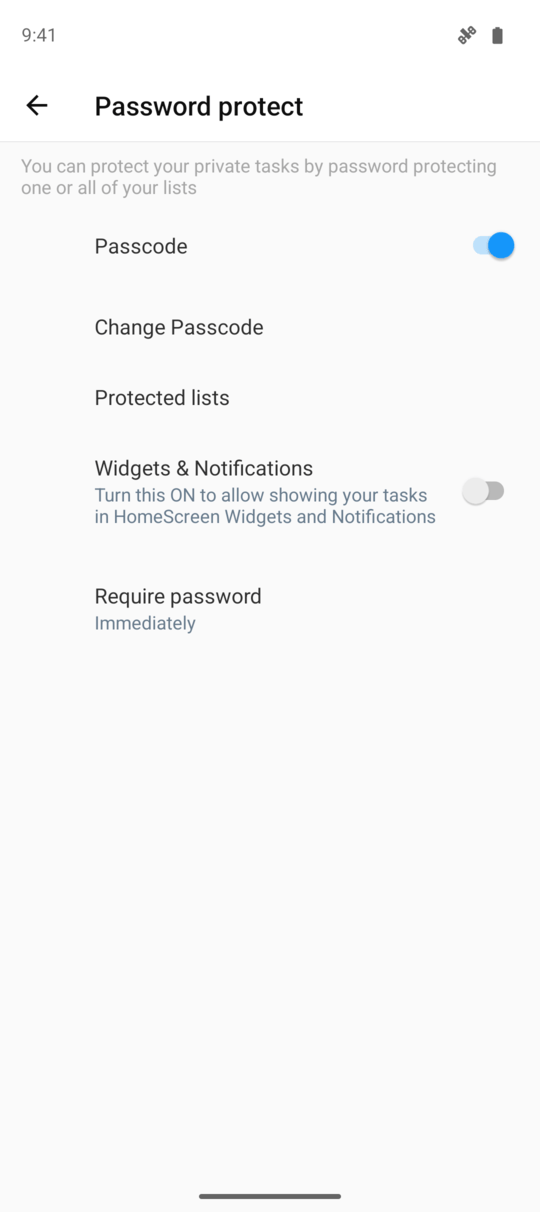
Protect selected lists with a passcode, or require an unlock before opening the whole app. Choose how soon 2Do locks again after you leave it.
Decide whether protected task details can appear in widgets and notifications, so access outside the app follows the choice you make.
Use a service that fits your setup
Choose iCloud, Dropbox, Todoist, Toodledo, or a CalDAV service such as Fastmail. Use the same service on your devices to keep tasks in sync.
 iCloud
 Dropbox
 Todoist
 Toodledo
 CalDAV service
We recommend native iCloud sync for 2Do across Android, iPhone, iPad, and Mac. Other services support different task details; the guide explains what each one syncs.
Projects & Checklists
Tags & Tag Groups
Paused Tags
Focus Filter
Smart Lists
Search
Smart Scheduling
Stars & Priorities
Batch Editing
Drag & Drop
Widgets
Sticky Alert
Multiple Alerts
Repeating Tasks
Locations
Actions
Lists & List Groups
Tablet Layout
Password Protection
Backups
Your Data, Your Rules
Your tasks are stored on your devices. If you choose to sync, 2Do uses the service you select.
Read our privacy policy to learn more.
The Word on the Street
I love this app!
I love this app! You can add URLs, phone numbers, etc that will open when you tap them. You can set up filters for most anything. Reminders work perfectly. Create lists, projects, checklists, single tasks, start date, due date, custom repeat, etc. Add tags. I can't think of anything this app is missing. I use it every day.
THE BEST organizational todo list app
I promise you this is THE BEST organizational todo list app out there! Believe me I have tried them all I should be an expert at this point lol I am all about organization and my todo list and this app has been a life saver, since I can remember!
Easy to use & effective way to organize tasks
Easy to use & effective way to organize tasks. I make different categories - work, home, school - then pop in tasks or lists. Easy to add things on the go. Love the reminder and due date features.